This is a trick to transform a folder into an image. You can use this to style your vault. You would place this in your vaults css folder \.obsidian\snippets.
In my setup I have two .css files. I’ll provide them below.
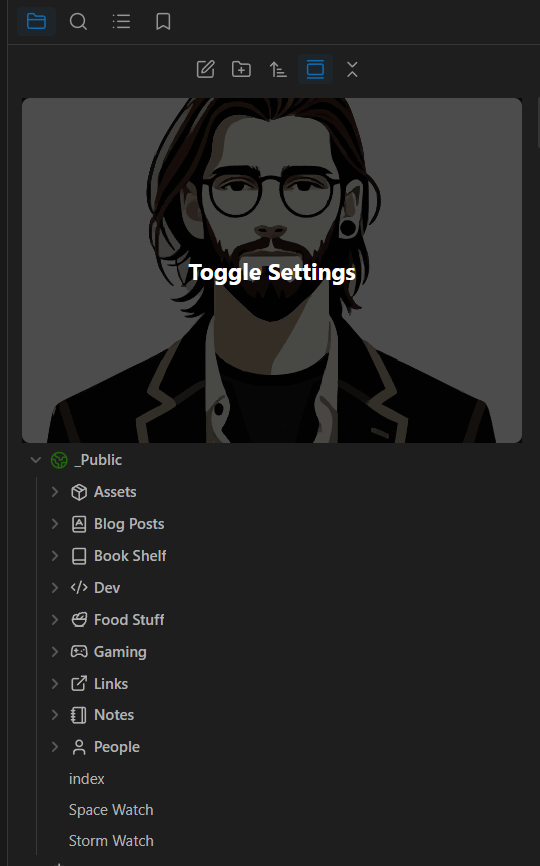
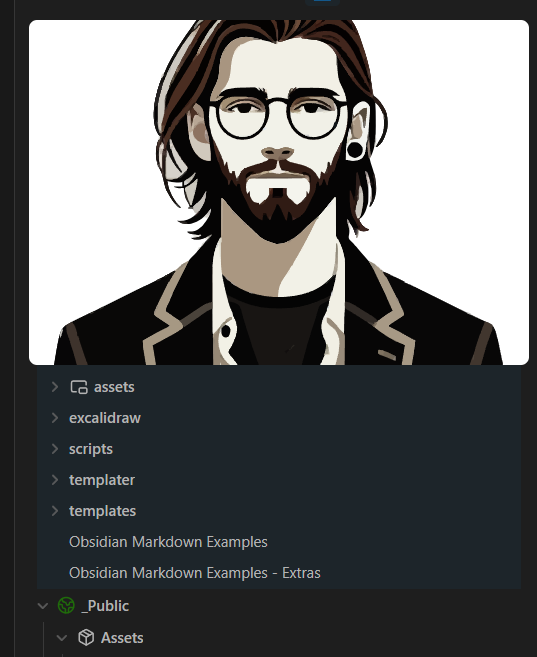
This uses my folder name __system update the css to you’re top folders name.
vault-logo.css
/* Embed an image to the right of the div */
div[data-path="__system"] * {
  display: none;
}

div[data-path="__system"] {
  position: relative;
  order: -1;
  width: 100%;
  min-height: 300px;
  border-radius: 7px;
  background-size: cover;
  background-position: center;
  background-repeat: no-repeat;
  background-color: #fff !important;
  background-size: 100%;
}

div[data-path="__system"]:hover {
  cursor: pointer;
}

div[data-path="__system"]::after {
  content: "Toggle Settings";
  position: absolute;
  top: 0;
  right: 0;
  bottom: 0;
  left: 0;

  /* transform: translate(-50%, -50%); */
  font-size: 20px;
  font-weight: bold;
  color: white;
  background: rgba(0, 0, 0, 0.7);
  opacity: 0;
  display: flex;
  justify-content: center;
  align-items: center;
  transition: opacity 0.1s ease-in-out;
}

div[data-path="__system"]:hover::after {
  opacity: 1;
}

div[data-path="__system"] + div {
  color: var(--tab-text-color-focused-active-current);
  opacity: var(--icon-opacity-active);
  background-color: var(--background-modifier-hover);
  padding-top:12px;
  margin-top:-8px;
  margin-left: 7px;
  margin-right: 7px;
  border: 0;
  overflow:hidden;
}
This is the image I have converted to an inline base64 image, you can use an online converter for an image you want to use to get the “string” version of it for this css file.
vault-logo-image.css
div[data-path="__system"] {
  background-image: url("<<< YOUR ENCODED BASE64 STRING HERE >>>");
}
I keep them separated to keep things simple in the main file.
Enjoy